If no records are found using the search, you can create new curriculum plan records.
From the Curriculum Planner screen, you can:
 Add plans
To add a curriculum plan:
-
Select the triangle on the Add button on the Curriculum Planner ribbon, and then select the Add Plan option.

The New Plan message is displayed.

-
Select Yes .
A blank record is displayed in the Plan Details pane.

The fields in the Plan Details pane are described in the following table.
| This field | Holds this information... |
|---|---|
| Plan Title | The name of the plan. |
| Funding Year | The funding year associated with the plan. Select from the drop-down list. |
| Model Version | The model version used by the plan. Select from the drop-down list. |
| Plan Status |
The current status of the plan. Note that the plan status can only be updated by staff with the Planning Administrator role. For plans with the status of Final or In review, staff can not change the plan details, plan funding values, and parameters for funding calculation. However, the status can be changed back to In planning. Important.When set to 'Curriculum Live', the columns in the main grid cannot be edited. You can update the column values when one of the other plan statuses is selected.
|
| Calendar Occurrence |
The calendar occurrence associated with the plan. This will limit the courses available to associate with the plan to those of the selected calendar occurrence. Select from the drop-down list, if required. Important.This field is displayed when a funding year and model version are selected from the corresponding fields.
|
| Organisation |
The organisation associated with the plan. This is used when you have selected to roll forward a course into a plan and link it to the owning organisation. You select the Search button to display the Organisation Search window where the required organisation can be selected. Important.This field is displayed when a funding year and model version are selected from the corresponding fields.
|


-
Select Save .
The curriculum plan is added.
Set plan level parameters
You can set plan level parameters in the Plan Parameters pane. This can be accessed by selecting the Parameters tab at the bottom of the Plan pane.

The Plan Parameters pane is displayed. The default funding model parameters for the selected funding model version will automatically populate these fields. However, you can amend these values for a specific plan to reflect the departmental values and targets.

See the Plan Parameters Appendix for further details on the fields applicable to plan parameters.
Set plan level targets
You can set plan level target values for a plan that can be used to track how a plan is performing in the Plan Targets pane. This can be accessed by selecting the Targets tab at the bottom of the Plan pane.

The Plan Targets pane is displayed. You can set static values on how you expect a plan to perform and other fields will then use these to display the current status of the plan.

See the Plan Targets Appendix for further details on the fields applicable to plan targets.
Add plan incomes
You can add incomes that cannot be easily associated with a specific course but are relevant to a department or subset of courses on the plan on the Plan Incomes screen.
To add a plan income:
-
Select the Incomes tab at the bottom of the Plan pane.

The Plan Incomes screen are displayed.

-
Select the Add button on the Curriculum Planner ribbon.

A new row is added to the grid.

The fields on the Plan Incomes screen are displayed.
| This field | Holds this information... |
|---|---|
| Income Type |
The income type for the plan. Select one of the following:
|
| Description |
The name of the income type. The list of income types available to select is determined by what is set in the Income Type field. Income types are configured in the CP Income Types reference data. |
| Rate |
The amount (£) that is multiplied by the No. of Units on the Income Details screen in the curriculum planner module. Important.This field is only enabled for income types of Variable or Hours.
|
| Units | The number of units for the income type. |
| Amount | The total amount of the income. Depending on the income type this could be the rate multiplied by the number of units or the rate minus the depreciation percentage. |
-
Select Save .
The Save Plan message is displayed.

The plan income is added.
- Select one of the following:
- Save - saves the plan without recalculating the plan values
- Recalculate and Save - recalculates the plan values and then saves the plan
The plan income is added and the Recalculation progress message displayed if you selected to recalculate the plan values.
Important.You can also select the Recalculate button on the Curriculum Planner ribbon after saving your plan incomes to recalculate the plan values.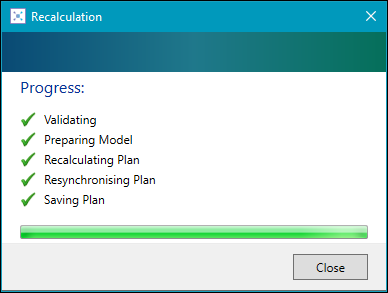
-
Select Close on the message if required.
The plan income totals are updated and displayed in the Plan Incomes pane.

Add plan costs
You can add costs that cannot be easily associated with a specific course but are relevant to a department or subset of courses on the plan on the Plan Costs screen.
To add a plan cost:
-
Select the Costs tab at the bottom of the Plan pane.

The Plan Costs screen is displayed.

-
Select the Add button on the Curriculum Planner ribbon.
A new row is added to the grid.

The fields on the Plan Costs screen are described in the following table.
| This field | Holds this information... |
|---|---|
| Cost Type |
The cost type for the plan. Select one of the following:
|
| Description |
The name of the cost type. The list of cost types is determined by what is set in the Cost Type field. Cost types are configured in the CP Cost Types reference data. |
| Rate |
The amount (£) that is multiplied by the No. of Units on the Cost Details screen in the curriculum planner module. Important.This field is only enabled for cost types of Variable or Hours.
|
| Depreciation | The percentage a cost will go down over the time of a plan or course. |
| No. of Units |
The amount of the variable. Important.This field is not applicable for cost types of Fixed or Learner.
|
| Amount | The total amount of the cost. Depending on the cost type this could be the rate multiplied by the number of units or the rate multiplied by the depreciation percentage. |
-
Select Save .
The Save Plan message is displayed.
- Select one of the following:
- Save - saves the plan without recalculating the plan values
- Recalculate and Save - recalculates the plan values and then saves the plan
The plan cost is added and the Recalculation progress message displayed if you selected to recalculate the plan values.
Important.You can also select the Recalculate button on the Curriculum Planner ribbon after saving your plan costs to recalculate the plan values. -
Select Close on the message if required.
The plan cost totals are updated and displayed in the Plan Costs pane.
